

TDK标题: Comprehensive Tutorial for Updating Sanyhore hinge assembly machine Software
TDK关键词: Sanyhore hinge assembly machine, hinge assembly software update, fully automatic hinge machine, Sanyhore machine software update, hinge assembly maintenance
TDK描述: A step-by-step guide to updating Sanyhore fully automatic hinge assembly machine software, ensuring your equipment runs smoothly with new features and enhanced performance.
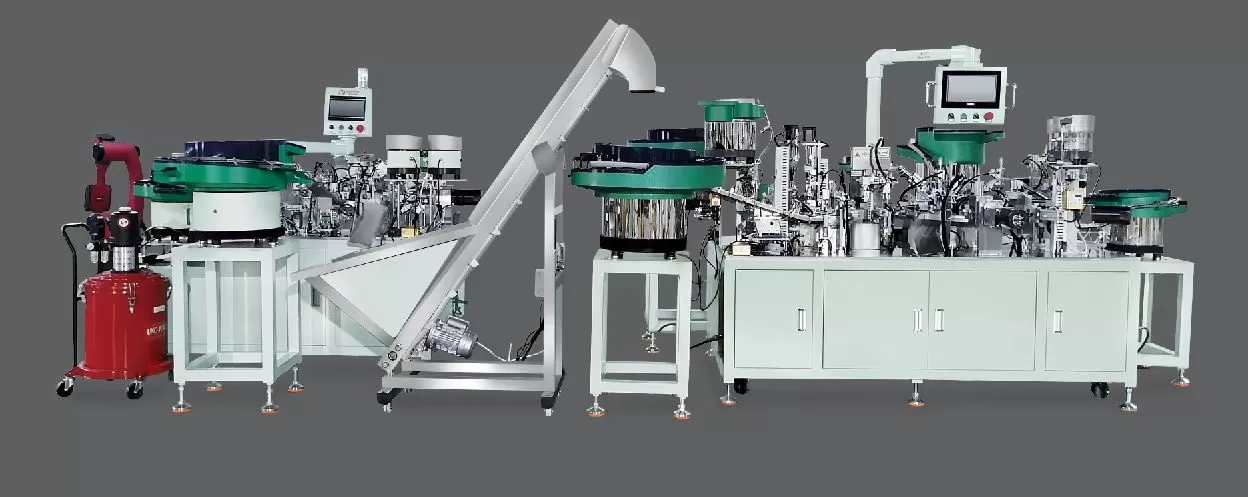
To maintain the peak performance of your Sanyhore fully automatic hinge assembly machine, regular software updates are essential. These updates often include bug fixes, performance optimizations, and new features designed to enhance your production efficiency. This tutorial will walk you through the complete process of updating the machine’s software, ensuring a safe and efficient update from start to finish.
1. Preparing for the Software Update
Before initiating the update, take time to prepare your machine and workspace to avoid disruptions. First, confirm your machine’s model and current software version. You can find this information in the machine’s control panel under the “System Settings” or “About” menu. Next, ensure your Sanyhore hinge assembly machine is connected to a stable power source and that no external devices (e.g., tools, containers) are near the control panel to prevent accidental interference. It’s also recommended to back up critical production data, though Sanyhore’s software update process is designed to be non-intrusive, and user data is typically preserved. Finally, verify that your computer (if used for the update) meets the system requirements listed in the update file’s documentation, such as minimum operating system version and sufficient storage space.
2. Downloading the Latest Software Update
Once your machine is ready, obtain the latest software update from Sanyhore’s official support portal. Visit the Sanyhore website and navigate to the “Support” section, then select “Software Updates” for your specific hinge assembly machine model. Download the update file to your computer, ensuring you save it in a location that’s easy to access (e.g., the desktop). Avoid interrupting the download process, as incomplete files can cause errors during installation. After downloading, verify the file’s integrity by checking the file size against the size listed on the support portal—this ensures you have the correct, uncorrupted update.
3. Installing the Update: Step-by-Step
With the update file ready, connect your computer to the Sanyhore hinge assembly machine using the provided USB cable. Power on the machine and access the control panel, then navigate to the “Maintenance” or “Software Update” menu. Select the “Update from USB” option and choose the downloaded file from your computer. Confirm the update process, and the machine will begin installing the new software. During this phase, do not power off the machine, disconnect the USB, or perform any other actions that might disrupt the installation. A progress bar on the control panel will indicate the installation status, which typically takes 5–10 minutes depending on the update size.
4. Verifying the Update Success
Once the installation completes, the machine will restart automatically. After the restart, check the software version in the control panel to confirm the update was successful—this should match the version number provided in the support portal. Test key machine functions, such as hinge loading, positioning, and assembly, to ensure all operations run smoothly. If the update includes new features (e.g., improved precision settings or enhanced error logging), verify these are accessible and functioning as expected. For example, if a new diagnostic tool is added, run a quick test to confirm it detects and reports machine status accurately.
5. Post-Update Considerations
After a successful update, perform a final check to ensure no issues persist. If the machine operates normally, you can resume production. If you encounter any unexpected behavior (e.g., slower operation, error messages), consult the troubleshooting section in the update documentation or contact Sanyhore’s technical support team. Regularly check the Sanyhore support portal for future updates, as new software releases are periodically available to address evolving production needs and maintain machine compatibility.
6. Common Questions About Sanyhore Hinge Assembly Machine Software Updates
Q: What should I do if the update fails to start?
A: First, ensure the USB cable is securely connected and the update file is uncorrupted. Try re-downloading the update and repeating the process. If issues persist, check if your machine meets the system requirements or contact Sanyhore support.
Q: Will updating the software erase my production data?
A: No, Sanyhore’s software update process preserves user data, including production parameters and settings.
Q: Can I use the machine while the update is installing?
A: It is strongly recommended to avoid using the machine during the update. Interrupting the installation can damage the software and require a factory reset.
As a professional manufacturer specializing in fully automatic hinge assembly machines, telescopic drawer slide assembly machines, and roll forming machines, Sanyhore is dedicated to supporting your production needs. If you encounter challenges during software updates or require further assistance, reach out to our team directly. Our sales manager is available at +86 13425506550 or via email at info@sanyhore.com to answer your questions and help optimize your equipment performance. Trust Sanyhore for reliable, high-quality hinge assembly solutions—contact us today to learn more about our machines and services.


